Set the QuerySurge™ Application Server’s Memory Allocation (Microsoft Windows)
1) Make sure all users are out of the system and that no Scenarios are executing.
2) Log into the QuerySurge Application Server as Administrator.
3) On your QuerySurge Application Server, navigate to the <QuerySurge Install dir>\tomcat\bin directory in the QuerySurge install directory (the default is: C:\Program Files\QuerySurge\tomcat\bin).
4) Find QuerySurgeTomcatw.exe (not QuerySurgeTomcat.exe!); launch it as administrator.
5) Stop the Service using the Stop button toward the bottom left of the dialog.
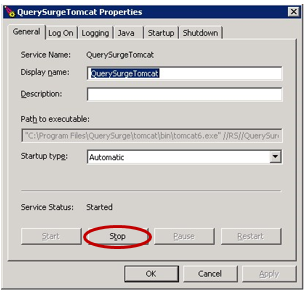
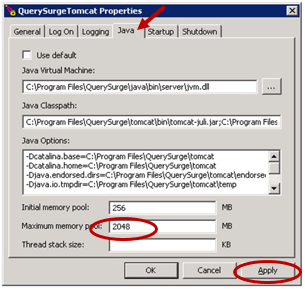
6) Click on the Java tab.
7) Change the Maximum memory pool to the value you want. In the image below, the Maximum memory pool is set to 2048 MB.
Click the Apply button.
8) Click back on the General tab
9) Click on the Start button
10) After QuerySurge starts, click OK.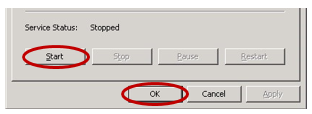
11) Re-start or re-connect your Agents.