QuerySurge user users frequently have a need to use QuerySurge with JSON documents as a data Source or Target, as JSON has become a common data exchange format for a variety of technologies, most prominently in NOSQL databases. This article describes a strategy for testing JSON data by automatically converting JSON to XML and testing the resulting XML using an XML JDBC driver. Note: For a direct connection to your JSON files (avoiding the overhead of the conversion described in this article), you may want to consider the CData JSON JDBC driver (a commercial JDBC solution). For full details, see this article.
A JSON to XML Conversion Strategy using the XML JDBC Driver
In order to put JSON documents in a "SQL-queryable" format for QuerySurge, the strategy shown here is to convert JSON to XML, so that QuerySurge's XML JDBC driver can be used to query for the data.
The following example shows how to set up automated conversion and querying of JSON via conversion to XML so that the whole process executes from QuerySurge like any other QuerySurge run.
Note: You most likely will need Administrative rights to perform this setup.
Preliminary Tasks
1. Download stels_xml_extension_v2.0.zip from the References at then end of this article and extract the stels_xml_extension.jar, commons-io-2.4.jar, and json-20090211.jar files and deploy them to each QuerySurge Agent's jdbc directory, located at:
[For Agents deployed on Windows] \\..\<QuerySurge Install Dir>\QuerySurge\agent\jdbc
[For Agents deployed on Linux] //../<QuerySurge Install Dir>/QuerySurge/agent/jdbc
Reference File: stels_xml_extension_v2.0.zip
2. Stop your Agent(s), and make a copy of the agentconfig.xml file, located at:
[For Agents deployed on Windows] \\..\<QuerySurge Install Dir>\QuerySurge\agent\config\agentconfig.xml
[For Agents deployed on Linux] //../<QuerySurge Install Dir>/QuerySurge/agent/config/agentconfig.xml
Edit the agentconfig.xml file for each Agent, by adding the following driver property:
 <connectionProps>
<driverProp driver="jstels.jdbc.xml.XMLDriver2" prop="function:json_file_to_xml" type="String"
value="com.rttsweb.stels_xml_extension.XMLFunctions.json_file_to_xml" />
</connectionProps>
3. Save the agentconfig.xml file, and re-start the Agent.
4. Save the schema.xml file to the same directory location as the sample JSON data file. You may need to edit the schema.xml file so that the file path reflects your deployment path.
Reference Files: jsonFile.json, schema.xml
Setup the Execution in QuerySurge
5. Create an XML Connection that points to the schema.xml file
Reference Article: Configuring Connections: XML
6. Create a QueryPair, and add a call to the custom conversion function before a SELECT against the converted XML.
The call syntax in your QueryPair is:
CALL json_file_to_xml('<path to JSON file>', '<path to write XML file>');
A sample query in a QueryPair looks like this:
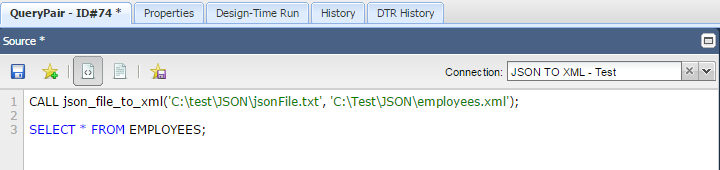
During execution, the json_file_to_xml() method will convert the JSON file (specified by
the first argument) to XML and save it using the file path specified in the second argument. The
XML driver will then execute the query against the XML file (using the schema.xml that the XML Connection points to) and QuerySurge will complete QueryPair execution as usual.
References