* HP ALM/QC is now owned by OpenText and may be referred to as OpenText Quality Center or OpenText ALM.
The Scheme
QuerySurge Test Management REST API allows tools such as ALM's Lab Manager to execute tests and retrieve results from QuerySurge. Following diagram illustrates the relationships:
Pre-requisites
- HP Lab Manager
- Test Management REST API License
- Test Management Sample Scripts
Remote Host Execution with QC/ALM requires installation of the HP Lab Manager components in your environment. The Lab Manager components do not have to be installed on your HP QC/ALM server; they can be installed on any boxes you have selected to act as remote hosts. For information regarding remote hosts and HP Lab Manager configuration, refer to HP Help and Support.
Setup
Note: The steps in this section can be done with any login to QC/ALM from any PC on your corporate network.
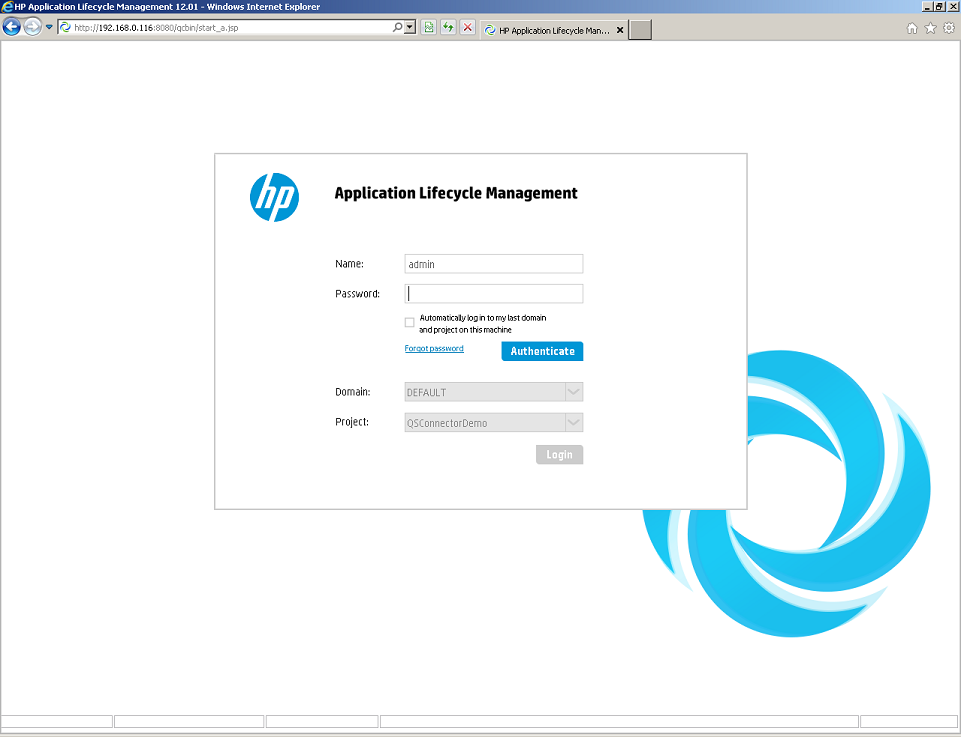
- Log into HP Application Lifecycle Management
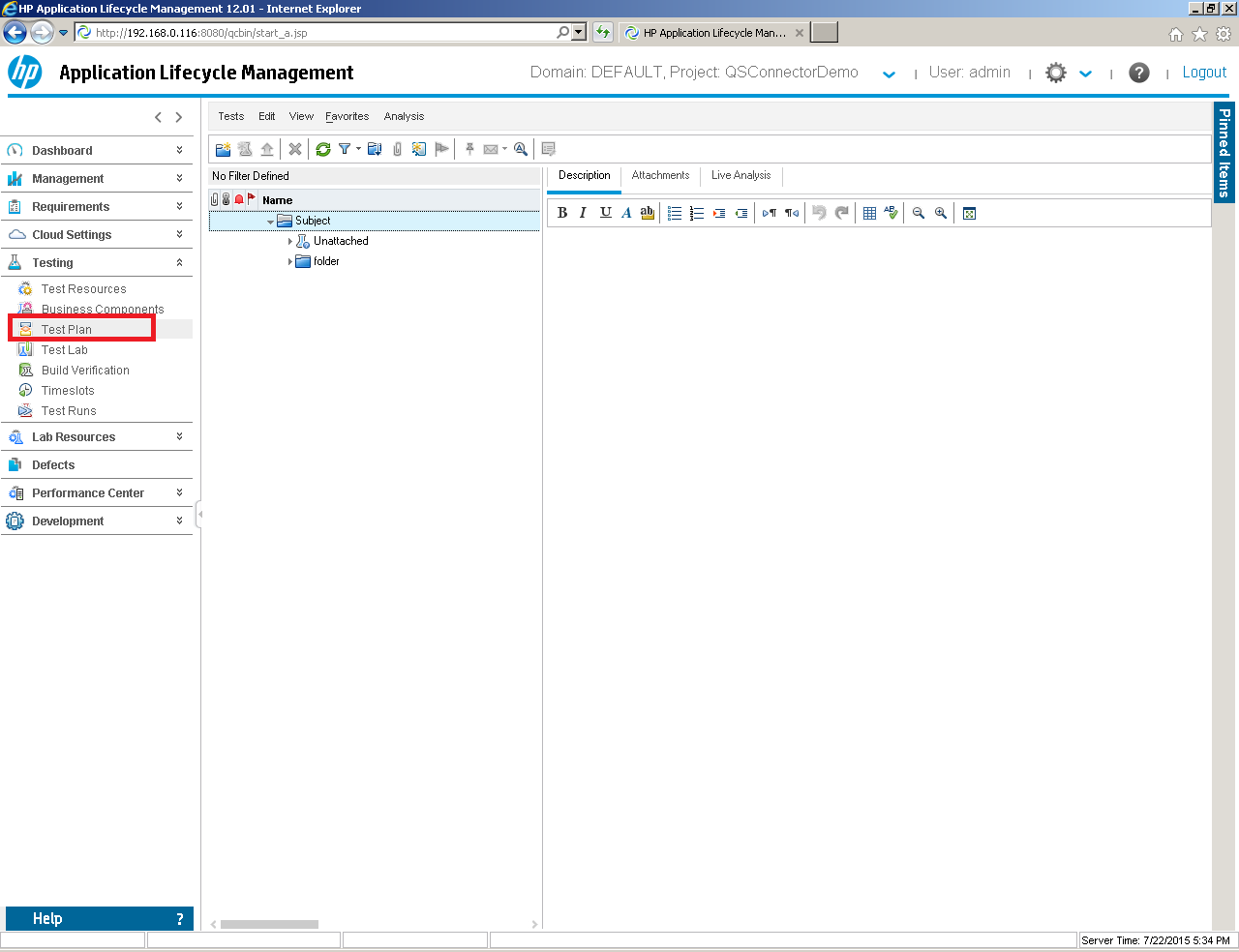
- In HP Application Lifecycle Management, click on Test Plan View
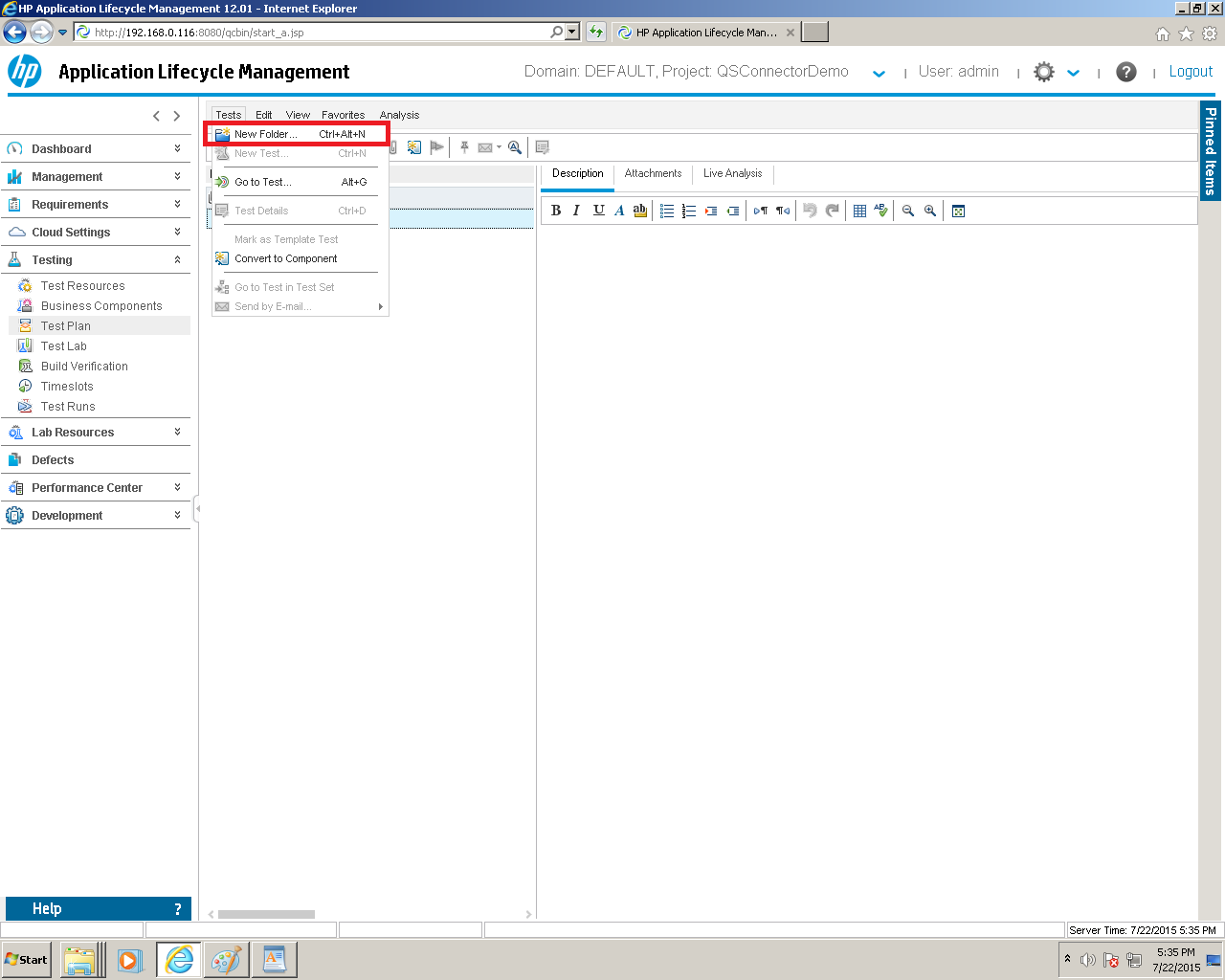
- Click Tests->New Folder
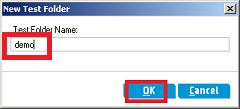
- Give the folder a Test Folder Name and press the OK button
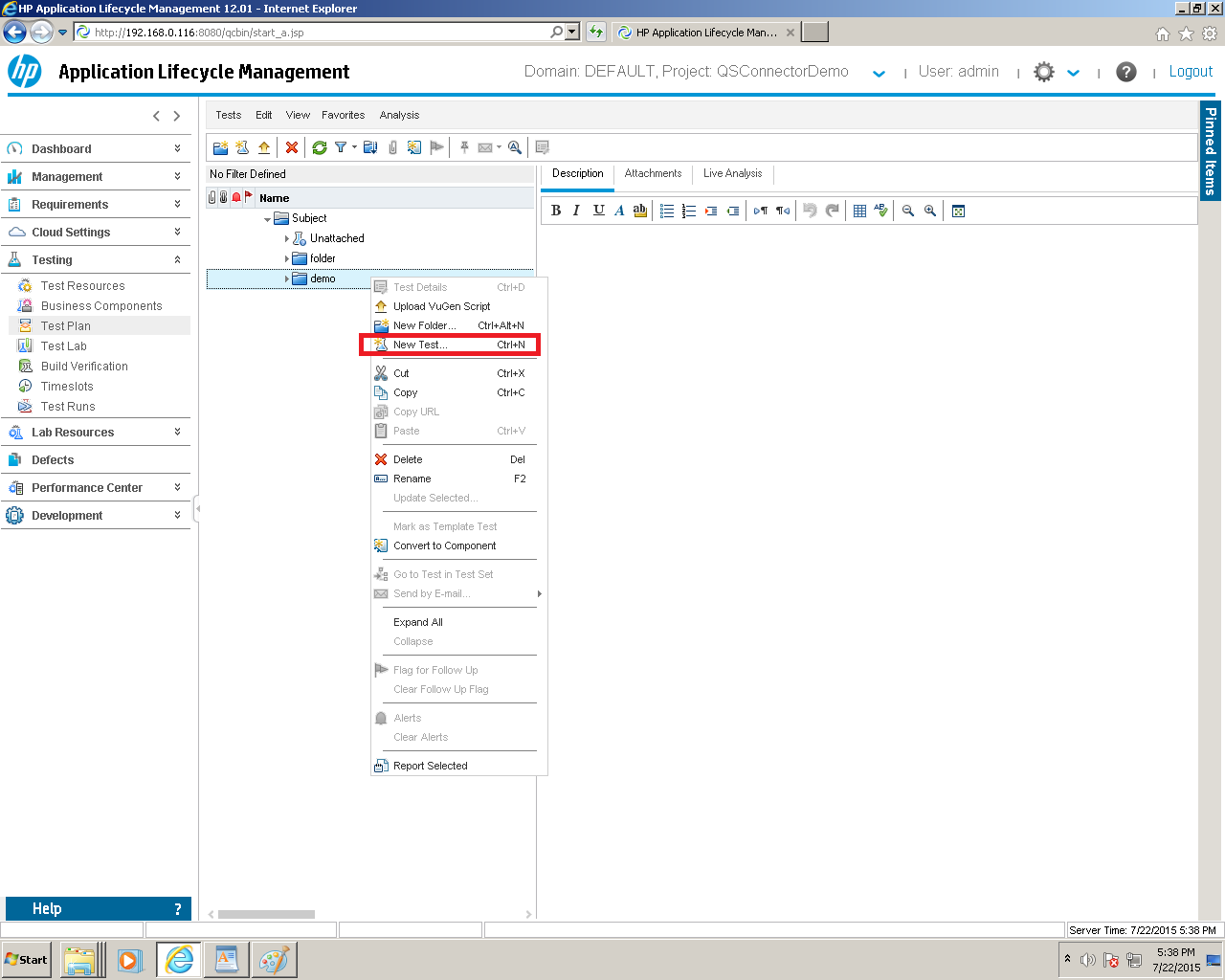
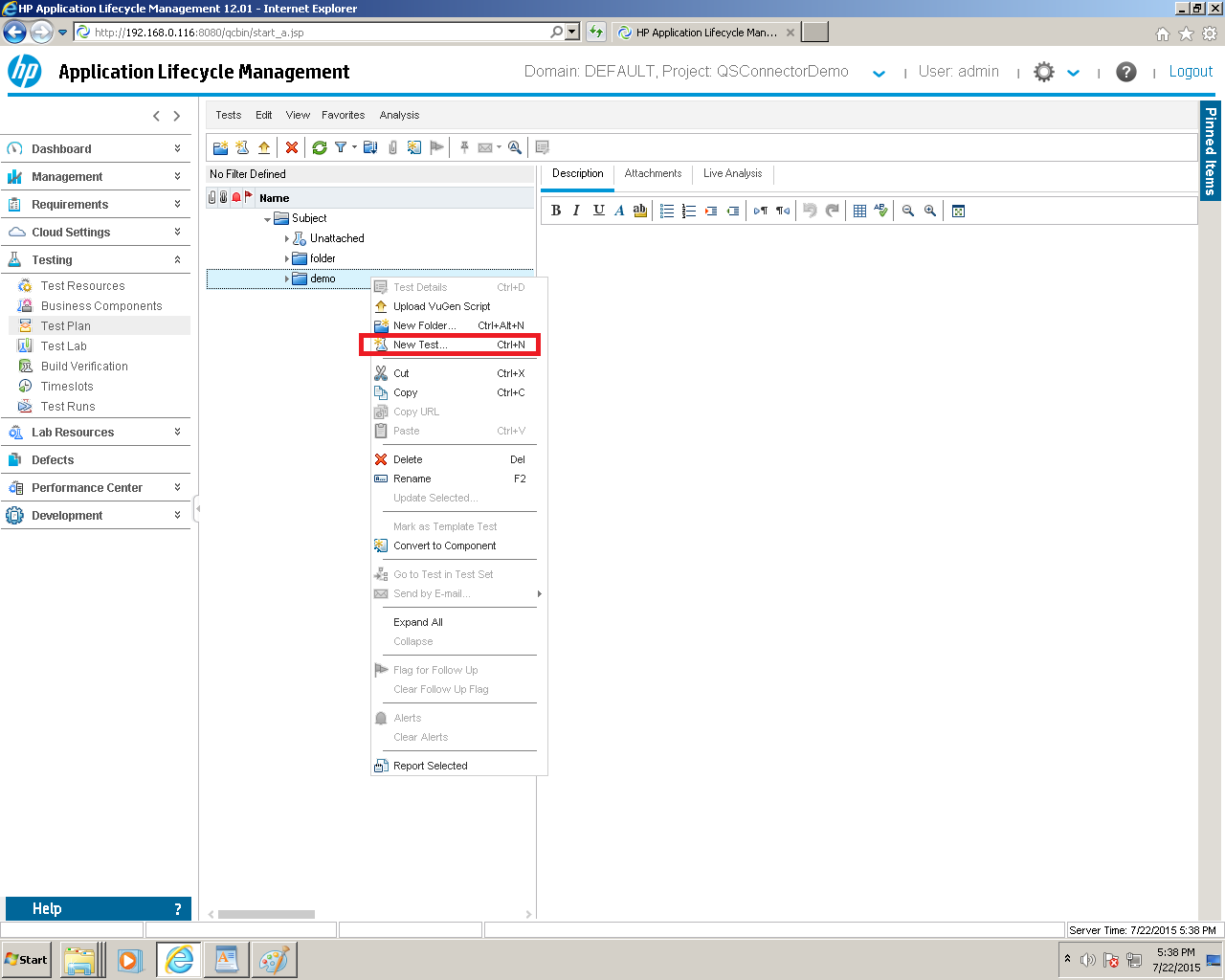
- Right Click on the folder and choose New Test
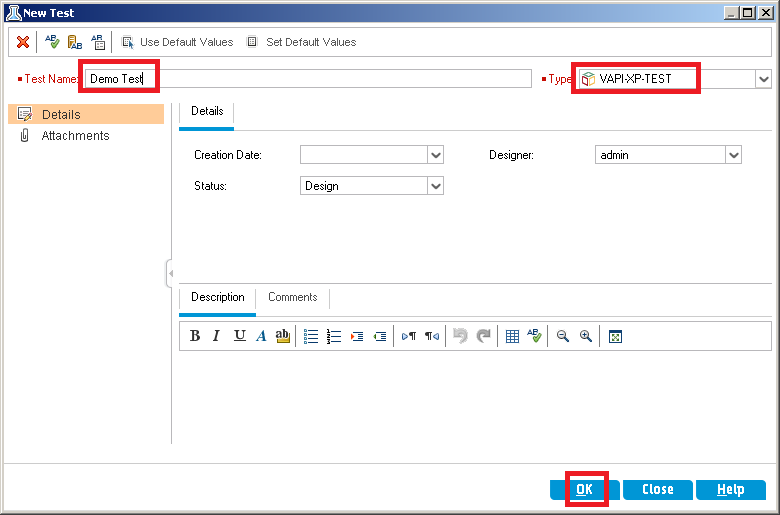
- Enter a Test Name, make sure to choose the Type of VAPI-XP-TEST, and press the OK button
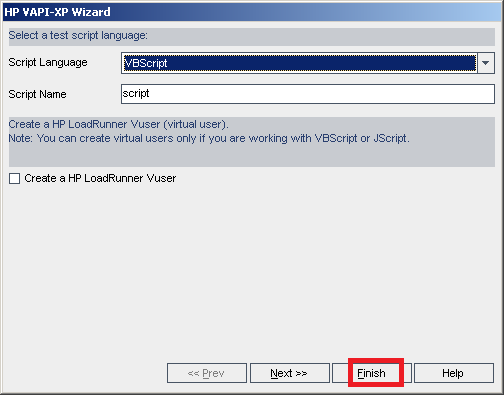
- Click the Finish button
- Open the sample vbs file (ALM_QC_Script_Rest.vbs), which, if you chose the default options while installing Test Management Sample Script, is found in the C:\Program Files\QuerySurge\rest\samples\testmanagement-samplesfolder
- In the section between the START OF CONFIGURATION VARIABLES and END OF CONFIGURATION VARIABLES, Edit the variables to the specifics on your machine.
- Back in HP Application Lifecycle Management, click the Test Scripts tab.
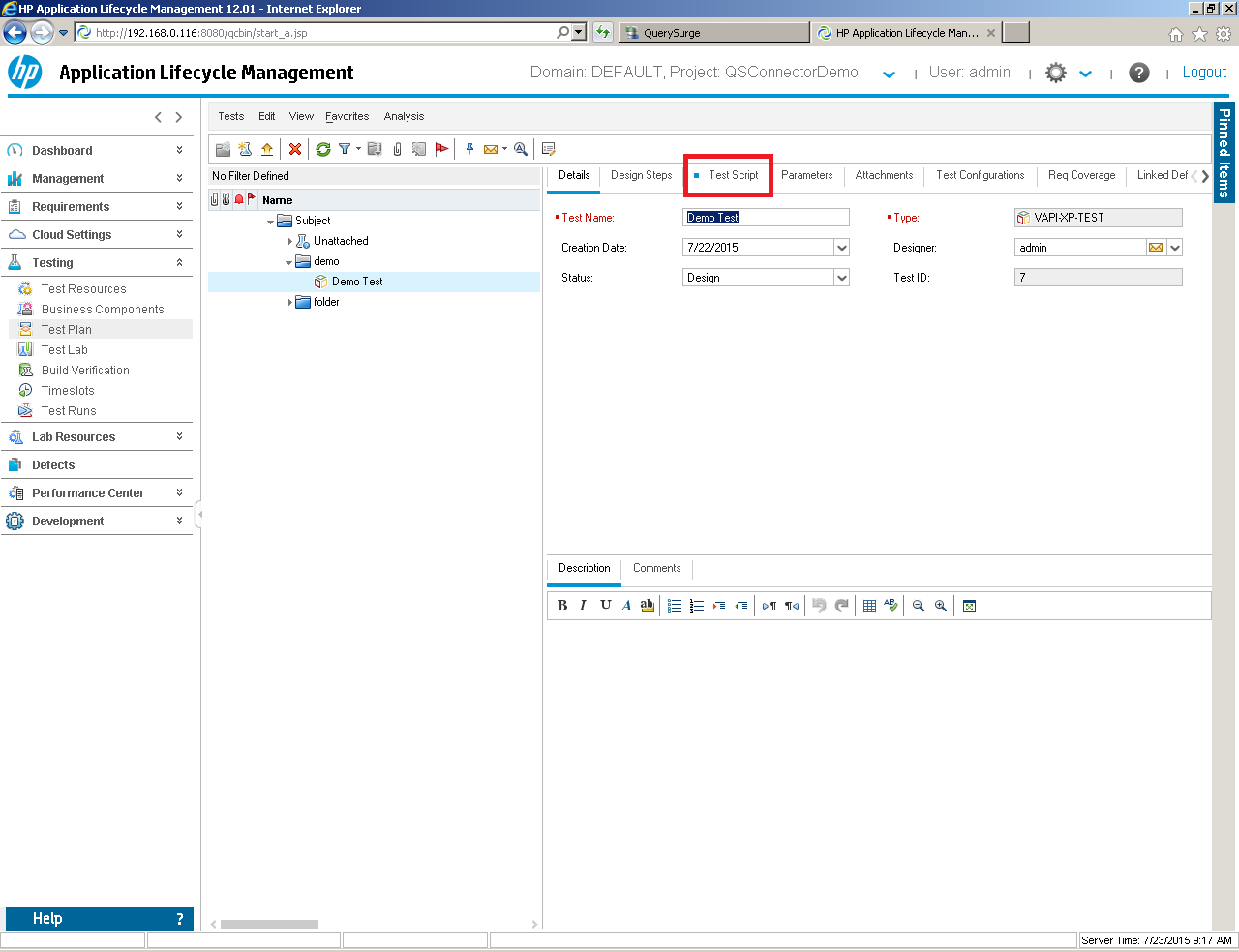
- Copy the entire text found in the vbs file into the Test Scripts window.
- Click the Save button.
- Click Test Lab.
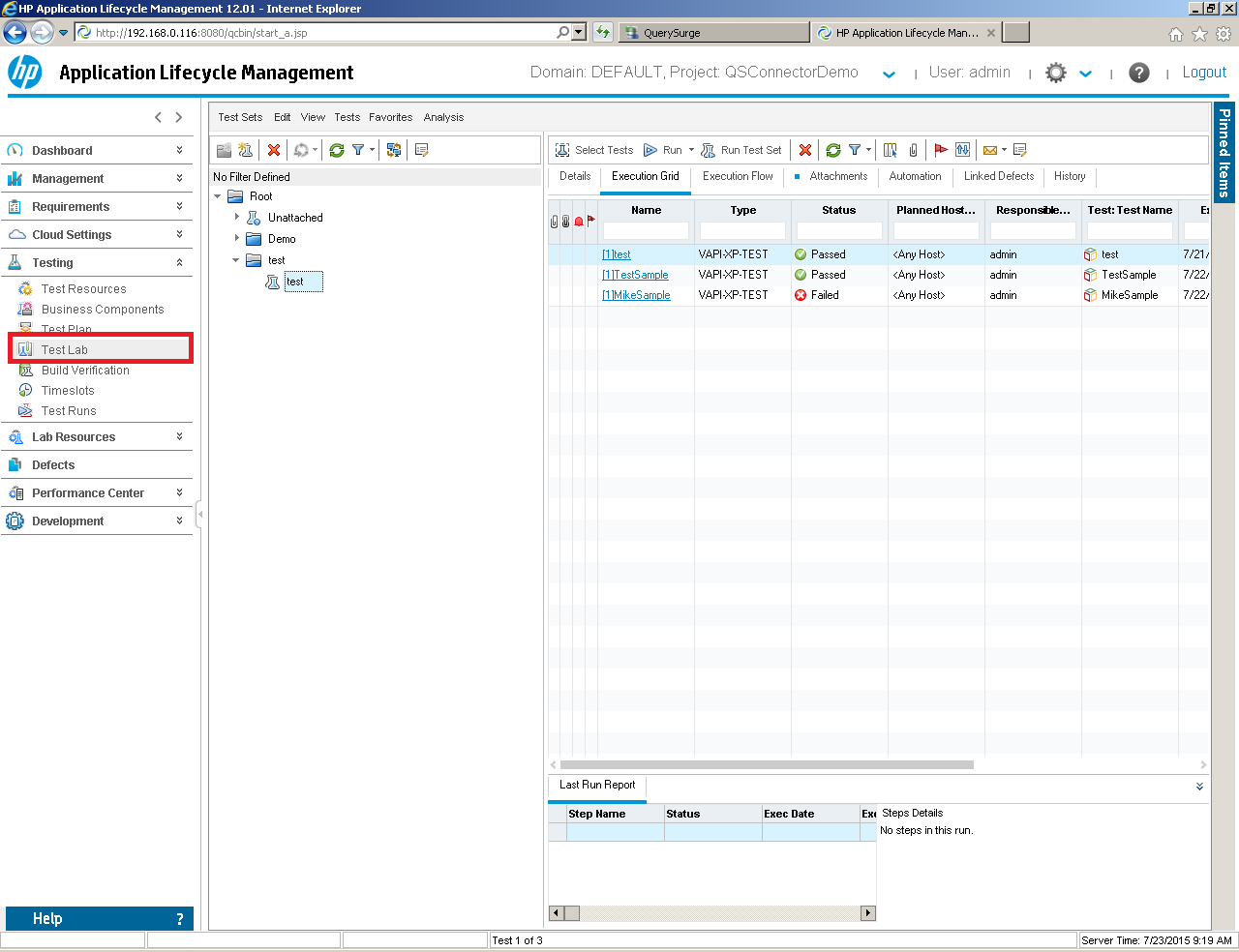
- Choose Test Sets -> New Folder.
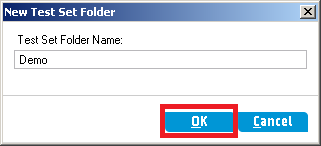
- Give the folder a Test Set Folder Name and press the OK button
- Right click on the folder just created and choose New Test
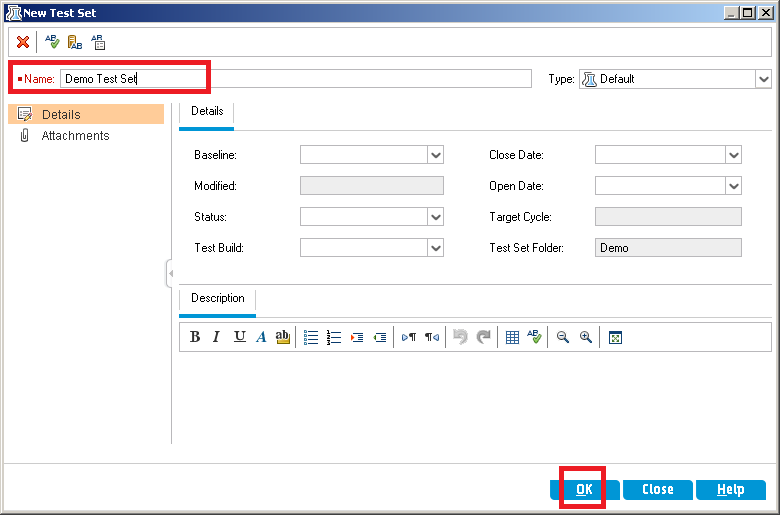
- Type in a Name ("Demo Test Set" in this example) and press the OK button.
- Click the Select Tests button.
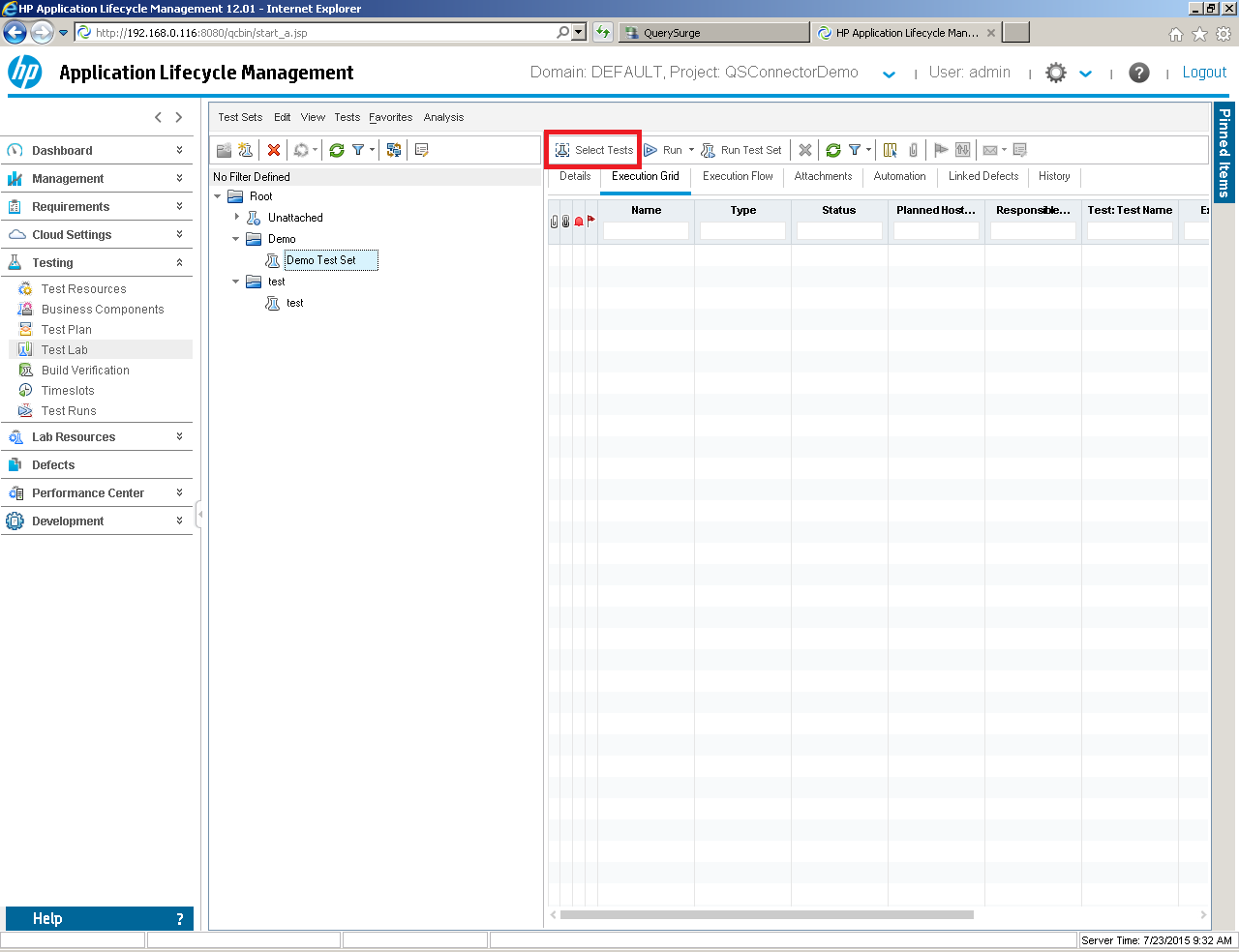
- Navigate to your test.
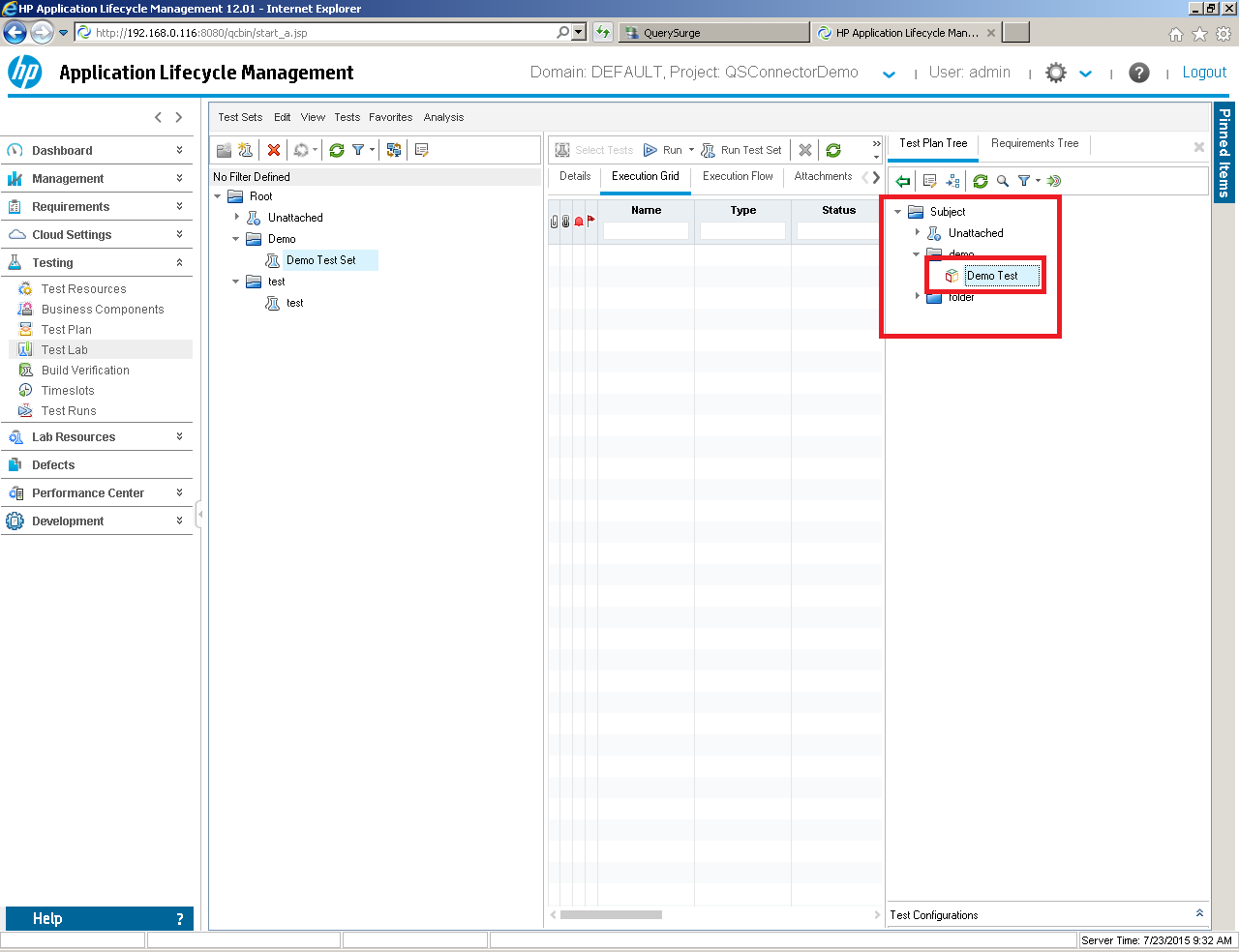
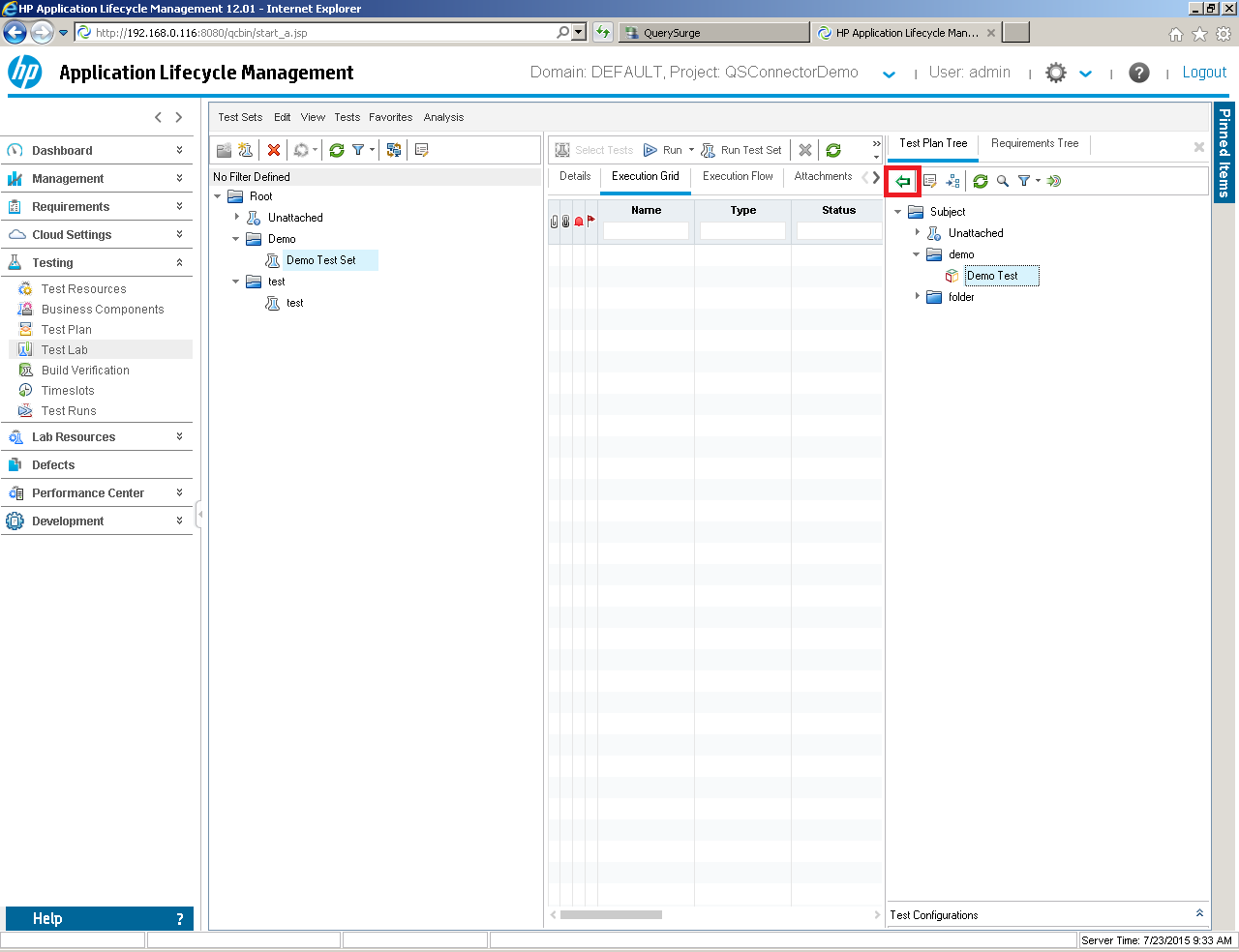
- Click the "left arrow" button to add the Test to the Test Set.
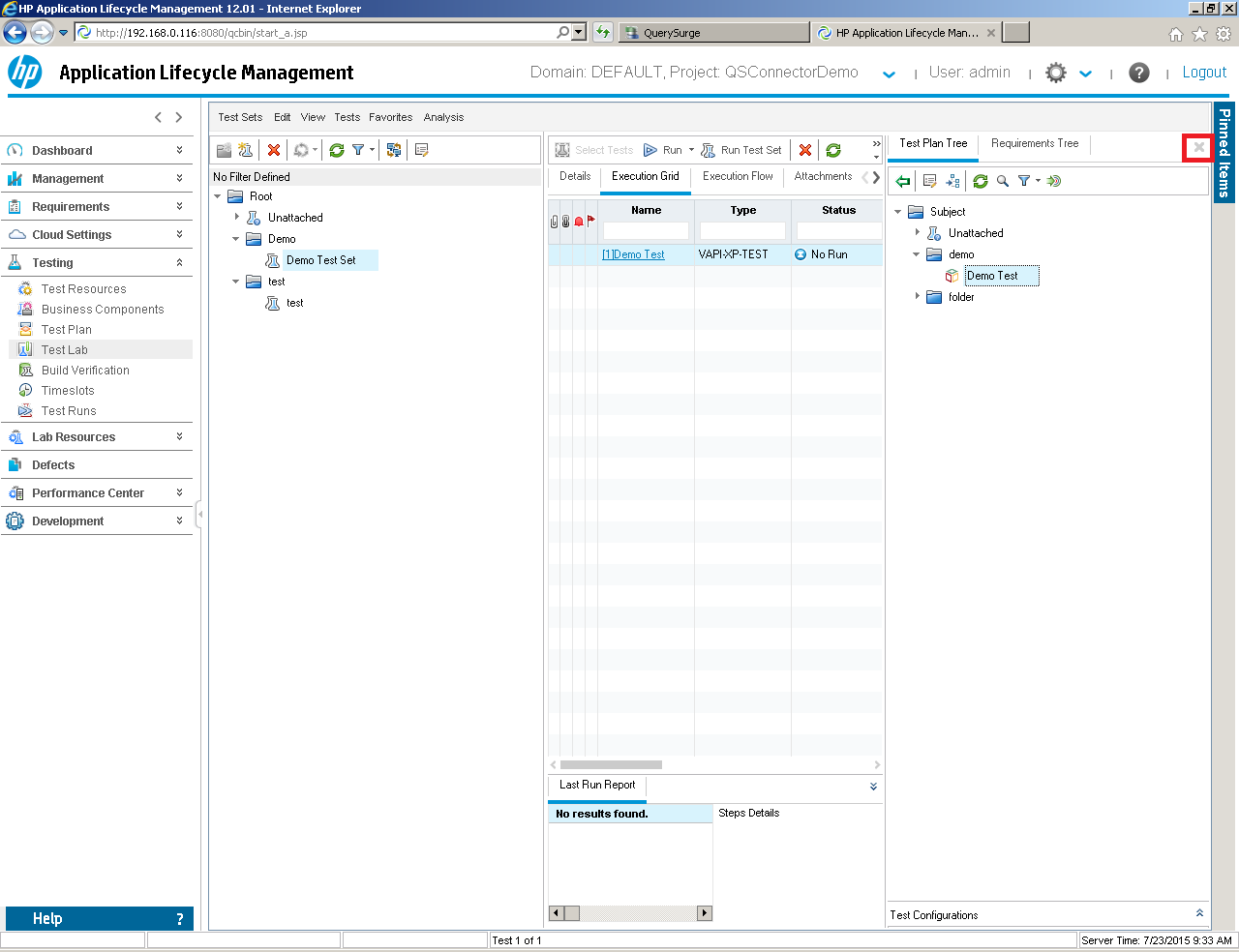
- Click the X button to close.
Running QuerySurge from QC/ALM
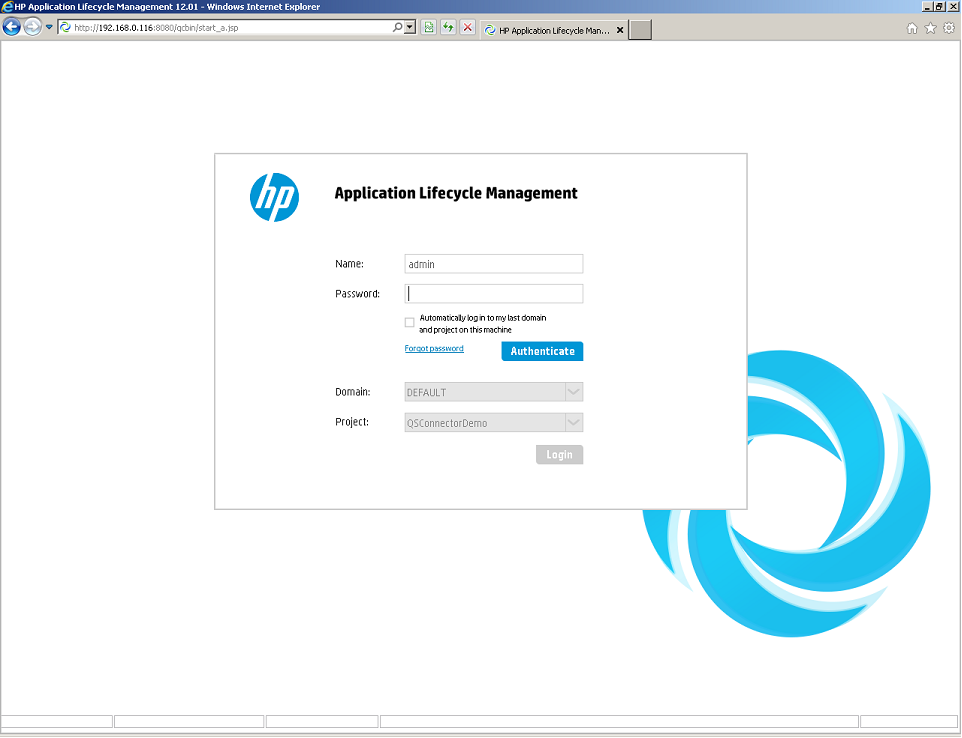
- Log into HP Application Lifecycle Management
- Navigate to your test set and select Run Test Set
- On the Automatic Runner Dialog: Click on the Run on Host field. If running tests locally, select Run All Tests Locally and proceed to Step 5.
- Select your remote host from drop-down and select your host
- Click the Run button
- When the test finishes close the Automatic runner to view the high level results
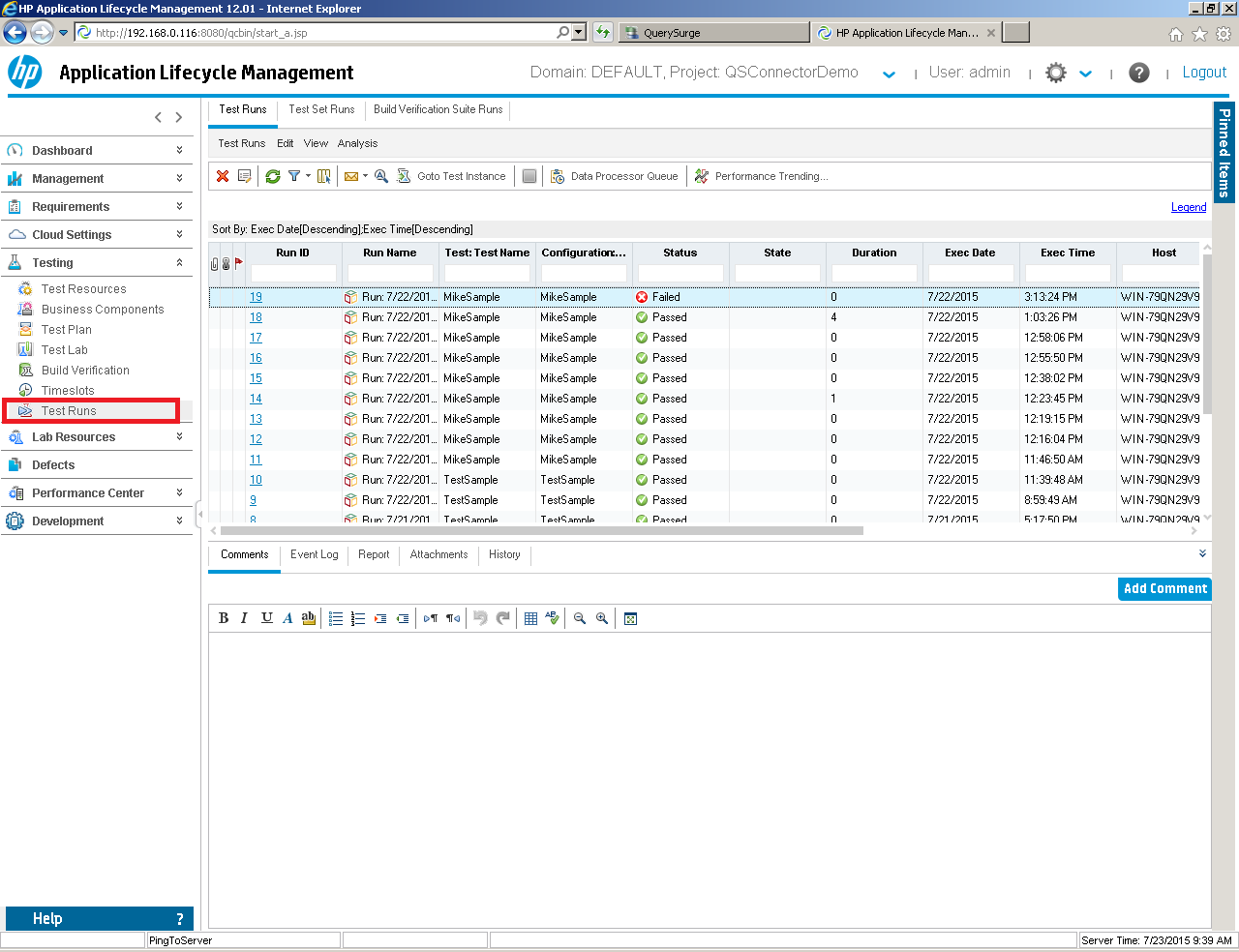
- Click Test Runs
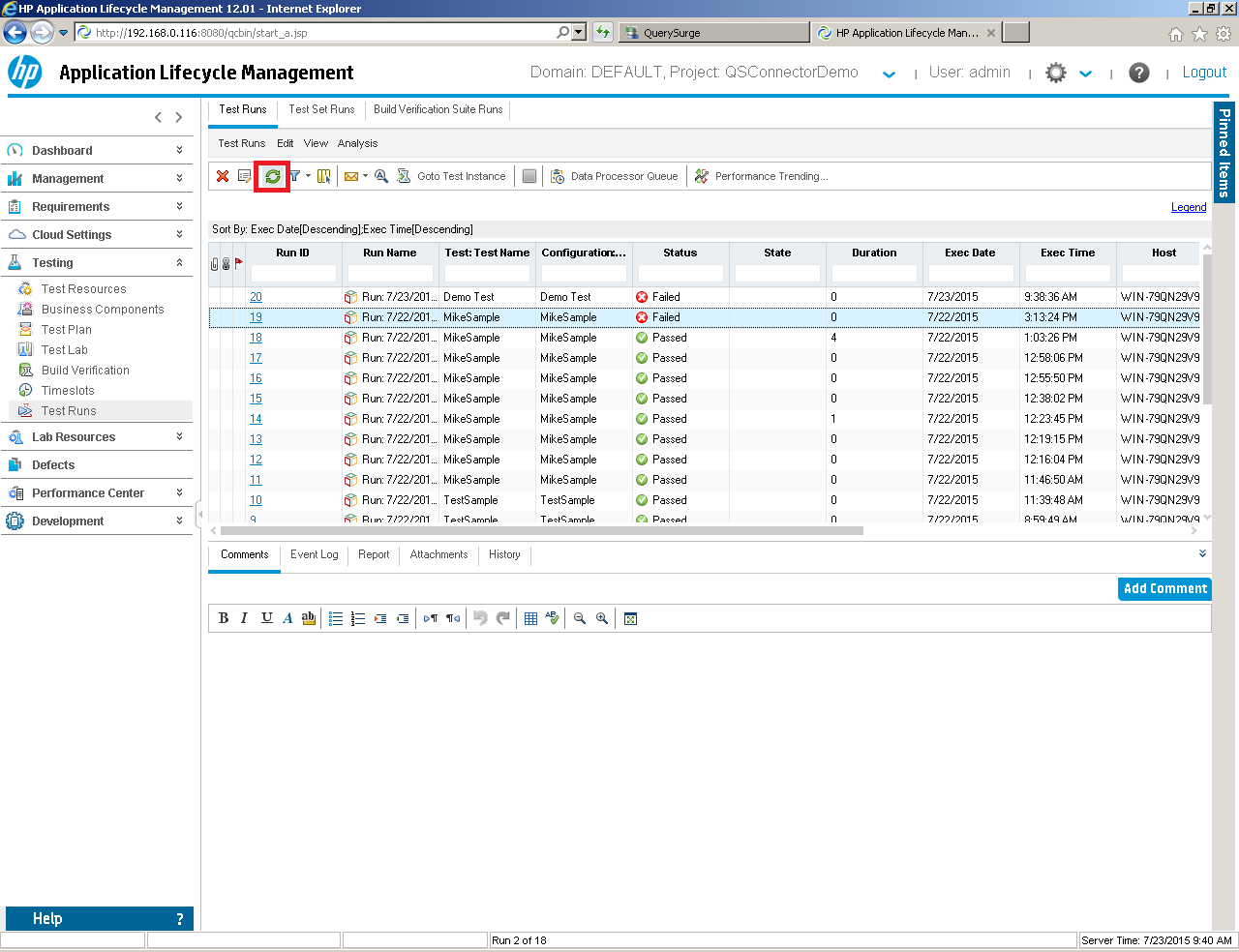
- Click the Refresh button
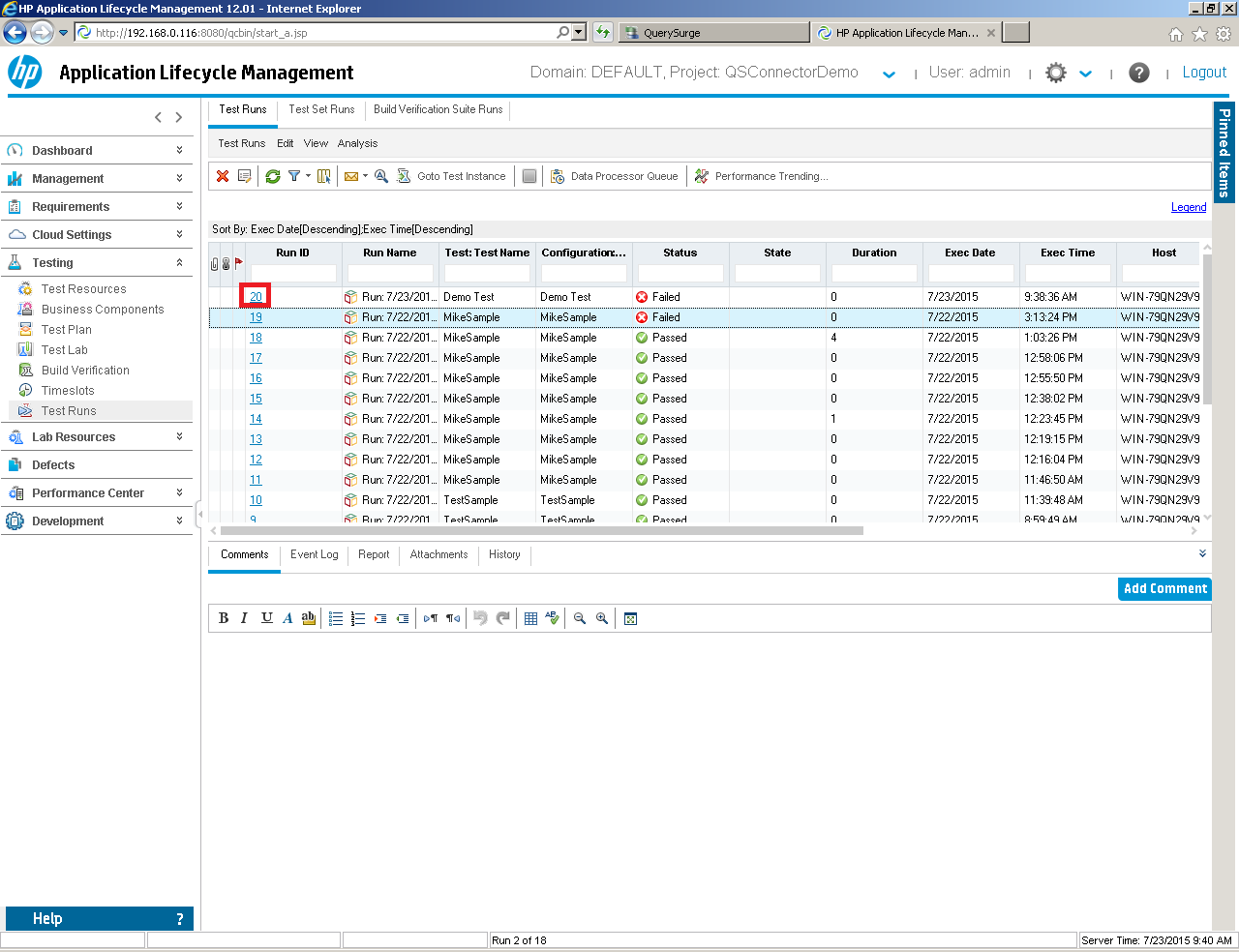
- Click on your test result
- Click on Report
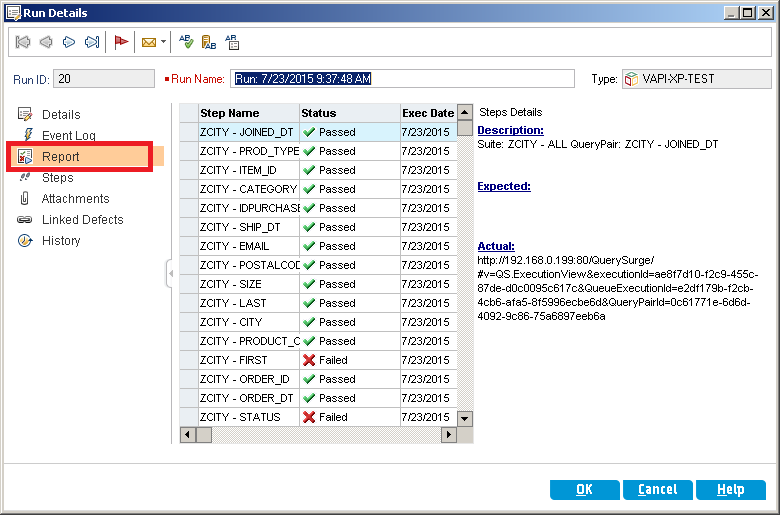
- You will see a URL provided in the Actual section, so copy and paste this result into a browser
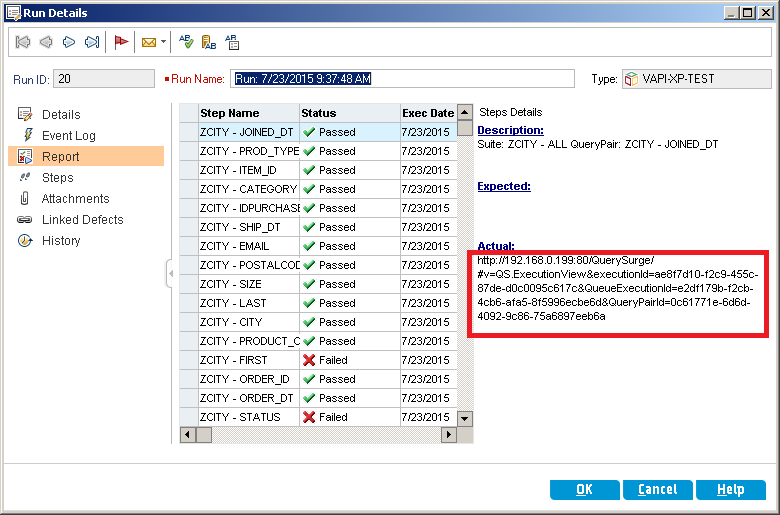
- Type in your QuerySurge username and password
- You will be navigated right to the particular QueryPair you selected from HP Application Lifecycle Management
- Click on Steps
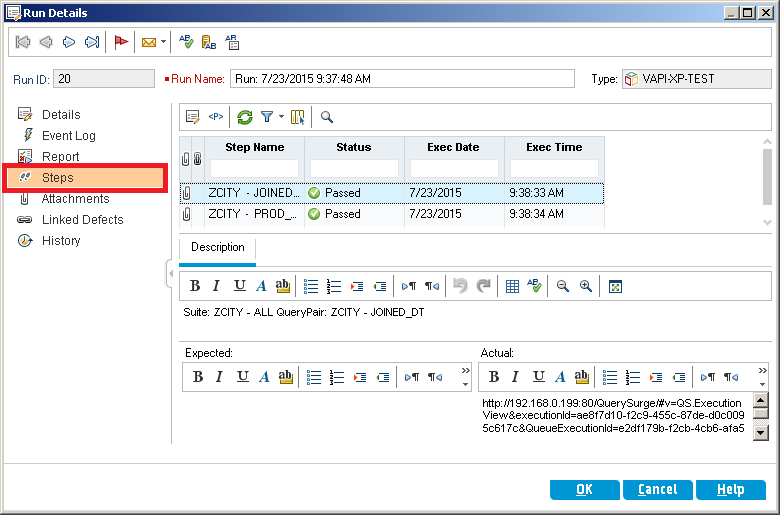
- Notice you will see the same URL in the Actual section as you did when you were in Report
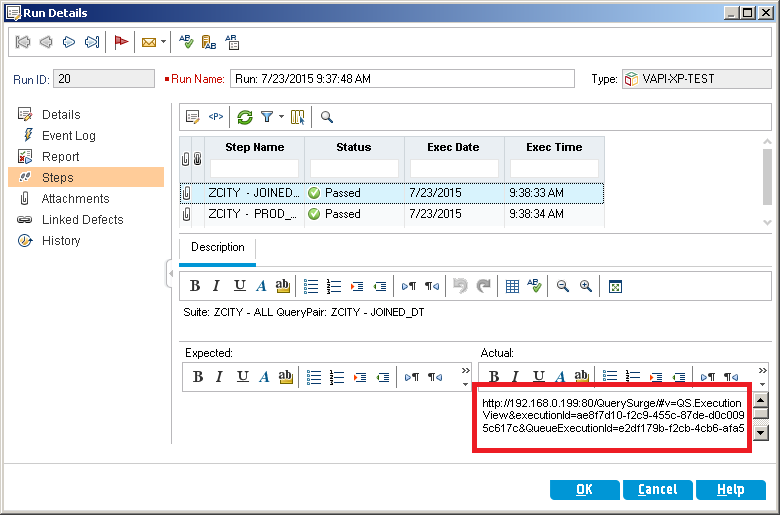
- Click on the paperclip next to a QueryPair
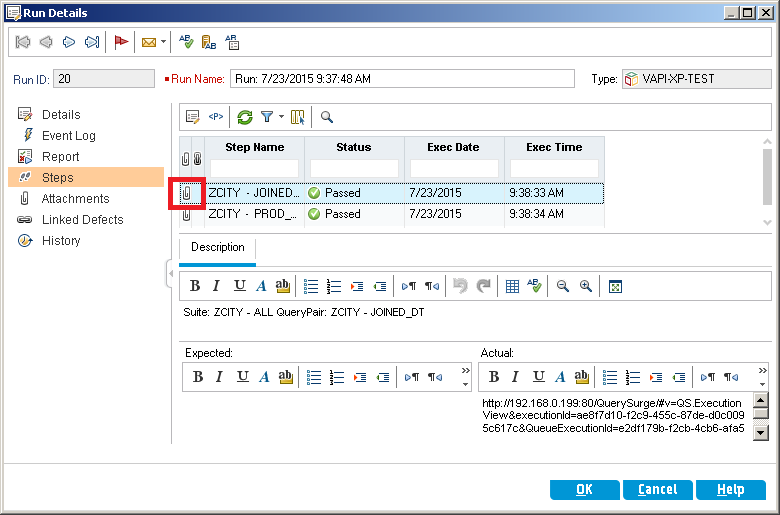
- Click on the link to QuerySurge
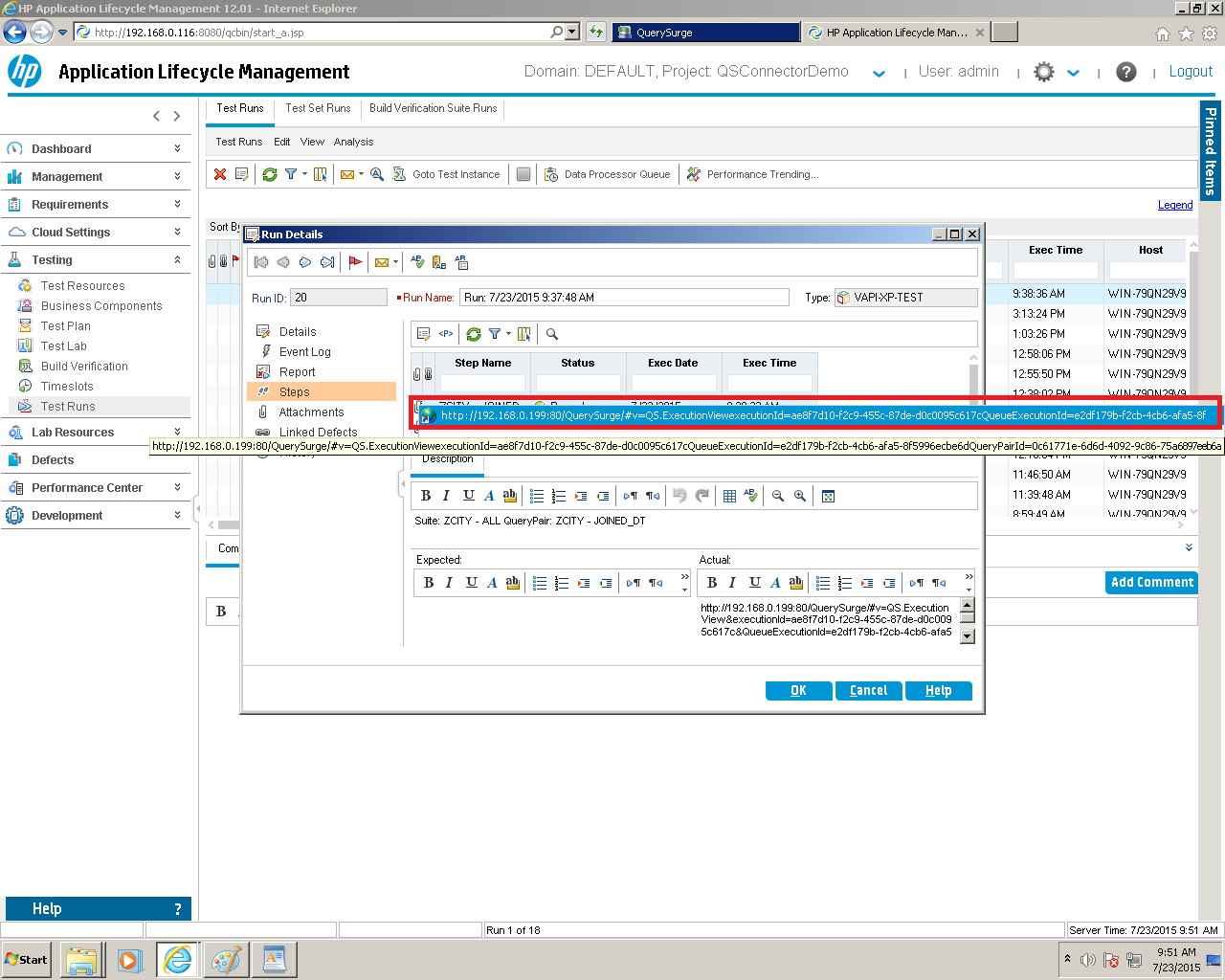
- Type in your QuerySurge username and password
- You will be navigated right to the particular QueryPair you selected from HP Application Lifecycle Management
Troubleshooting
Login Failure
If you encounter a "Login Failed" error while running the script, verify the configuration variables defined at the beginning of the script. Ensure they align with your environment specifications, including correct hostnames, ports, and authentication credentials. Common causes of this error include misconfigured connection details or incorrect credentials.
VAPI-XP Test runs in QC/ALM, Pass-Fail results return, but No Steps are Created
This issue is usually related to the user permissions granted to the QC/ALM user by the QC/ALM admin.
- For QC/ALM to populate the run steps for a QuerySurge test execution the QC/ALM user login executing the test must have the appropriate QC/ALM permissions.
- QC/ALM permissions are set at the group level in the Project Customization section. Make sure that the correct ALM users are in the group whose permissions are modified for use with QuerySurge.
- In the QC/ALM Project Customization section, choose Groups and Permissions. Select Test Lab permissions. Choose a group that your QC/ALM users are in, and assign permissions for Create and Update rights, for the following:
- Result
- Run
- Run Step
- Test Instance
- Test Set
- Test Set Folder
- Make sure to Save your changes.
Note: Newer ALM versions will have more "child" options than previous QC/ALM versions (which may have no child options). Some of these will interact with higher-level choices, so selecting Create or Update will automatically configure the child options.
In the sample image below, a Group has been created by a QC/ALM Admin user for QC/ALM users who will execute QuerySurge VAPI-XP tests. This Group, called "QuerySurge Tester" has Test Lab permissions assigned as described above.