* IBM Rational Quality Manager has been rebranded to IBM Engineering Lifecycle Management
QuerySurge Test Management REST API allows tools such as RQM's command line adapter to execute suites and retrieve results from QuerySurge. Following diagram illustrates the relationships:
Pre-requisites:
- RQM Command Line Adapter, that matches your version of RQM.
- Test Management REST API license
- Test Management Sample scripts
Script Setup
Test Management Sample scripts for RQM installs with two files:
1. RQM_Cmd.bat
2. RQM_Script_Rest.ps1
The RQM Command Line Adapter initiates RQM_Cmd.bat, which subsequently executes RQM_Script_Rest.ps1. The PowerShell script (ps1) is responsible for establishing a connection with QuerySurge and executing tests by invoking the necessary REST API endpoints.
In order for the scripts to run within your environment follow the procedure below to edit script parameters.
- Open the RQM_Script_Rest.ps1 file, which, if you chose the default options while installing QuerySurge, are found in the C:\Program Files\QuerySurge\rest\samples\testmanagement-samples folder
- In the section between the START OF CONFIGURATION VARIABLES and END OF CONFIGURATION VARIABLES, edit the variables to the specifics on your machine
- Make sure that the appropriate RQM Command Line Adapter for your version of RQM is installed in your environment (see Pre-Requisites above). After the RQM Command Line Adapter is installed and configured, make sure it is running (see the instructions found in the readme file of the Command Line Adapter folder).
RQM Test Script Setup
- In RQM, choose the option to Create a Test Script
- Name the Test Script and select 'Command Line' from the Type drop-down menu.
- Click on the Use test resources that are local to a test machine radio button, and then click the Select Adapter button.
- Select the appropriate machine/adapter to run on (this is a machine/adapter with the RQM Command Line Adapter), and then click the Next button.
- Enter the path that contains the local scripts you would like to run (Ex: C:\Program Files\QuerySurge\rest\samples\testmanagement-samples). Click the Go button to find the scripts in the location provided. When the list of scripts from your directory appears, select the script that you want to assign to this Test Script and click Finish. In this case it will be the RQM_Cmd.bat file. Save the Test Script.
- Choose the option to Create a Test Case.

- Give the Test Case a Name and click on the Save button

- In the Test Case, Click on the Test Scripts Category and click the Add Script button

- Click the checkbox next to your script and hit the Add and Close button

-
Click the Save button.

Running QuerySurge from RQM
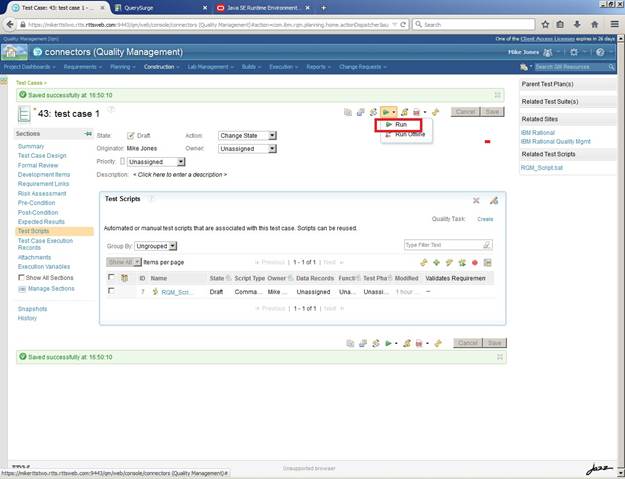
- Open your Test Case in RQM, and choose the Run option for the Test Case
-
Select any of the runtime configuration options you want and click on the Finish button. Execution will start.

- When the execution finishes, click on the Show Result button.
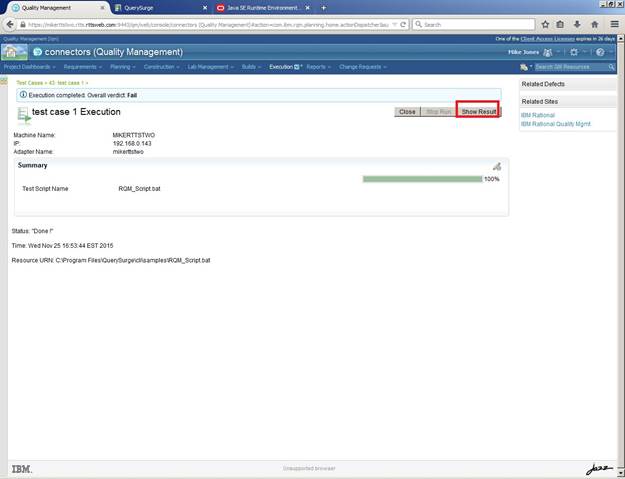
- The high-level results are displayed. To see detailed results, click on the ScenarioResults link under Result Details > Attachments.

- Click on any QueryPair result link for any QueryPair to return to QuerySurge to view the detailed results.

The link will bring you back into the underlying results in the QuerySurge Run Dashboard, so that you can examine the data underlying each result.